15 most common accessibility failures on US Government websites
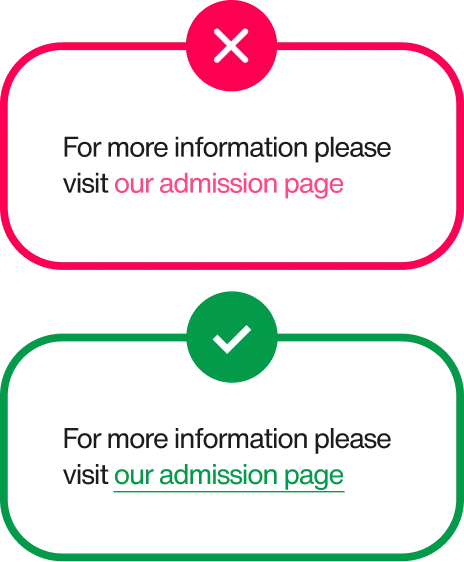
01. The same link text points to different places
Link Purpose (In Context) · Level A ~61% of government sites
Government sites run on links. Departments have links, services, forms, and notices have links, sometimes it feels like the links have links. The trouble starts when five of them all read “Application” or “Department” but each goes somewhere different.
A screen-reader user who pulls up the page’s list of links sees the same phrase over and over with no way to tell them apart. It’s the single most common failure we see across government websites, and it’s usually a content habit, not a code problem.
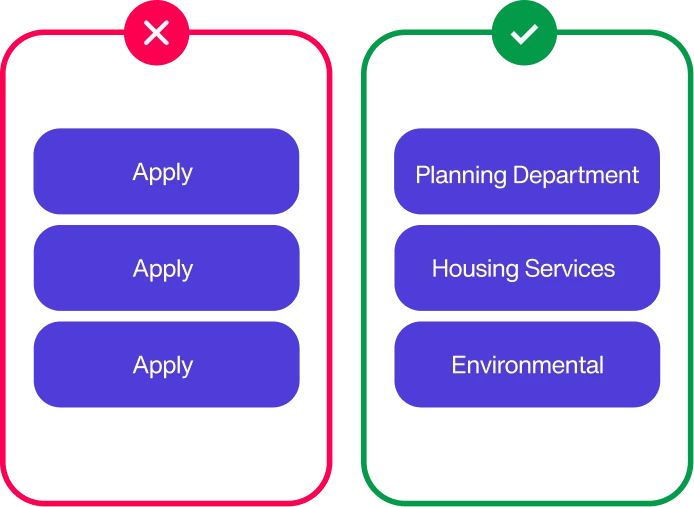
02. Navigation and link groups aren’t coded as lists
Info and Relationships · Level A ~49% of government sites
Nav bars and footers full of links should be a structured list, so a screen reader can announce “list, 12 items” and let users step through.
On nearly half of government sites they’re a loose pile of links instead, stripping out that grouping right where people navigate to find a service. Looks fine on screen; reads like confetti to assistive tech.
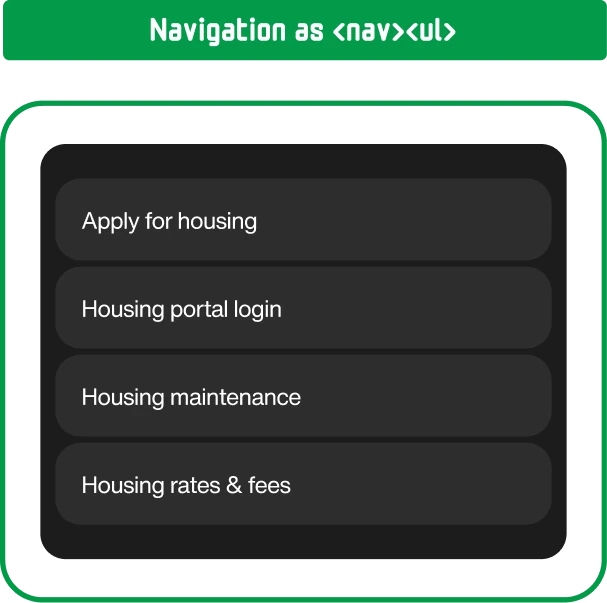
03. Insufficient text contrast
Contrast (Minimum) · Level AA~48% of government sites
Nav bars and footers full of links should be a structured list, so a screen reader can announce “list, 12 items” and let users step through. On nearly half of government sites they’re a loose pile of links instead, stripping out that grouping right where people navigate to find a service.
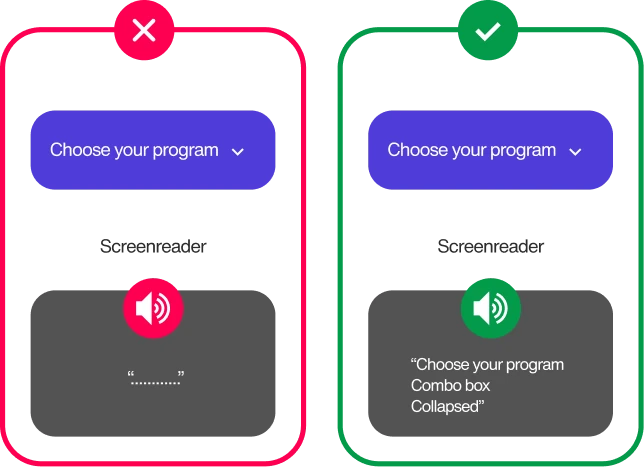
04. Custom controls screen readers can’t use
Name, Role, Value · Level A~48% of government sites
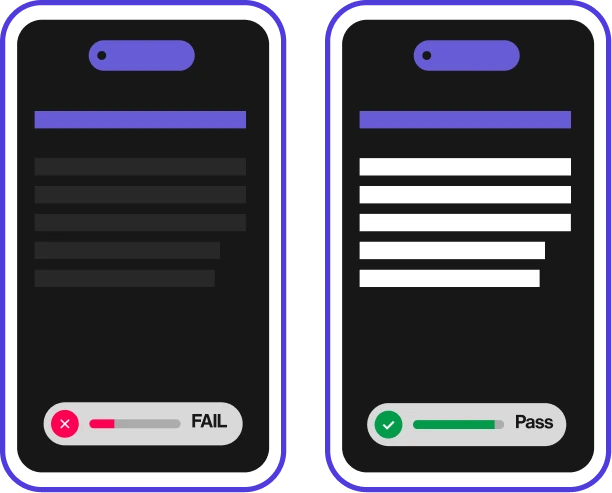
Contrast is the brightness gap between text and its background; AA requires at least 4.5:1 for normal text. Nearly half of government sites fall short: light-grey body copy, pale link colors, or text floated over a hero photo of city hall. Anyone with low vision, color blindness, or a phone in daylight is left squinting at the very notices they came to read.
05. Duplicate element IDs
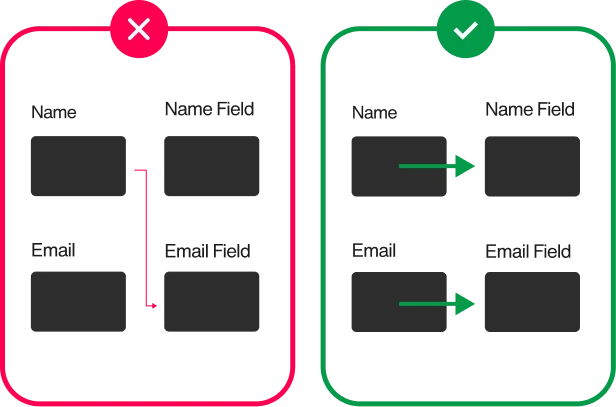
Parsing · Level A~44% of government sites
Every element ID on a page is supposed to be unique. It’s how labels, ARIA, and the scripts behind a form find the right thing to point at. Reuse the same ID twice (easy to do when pages are assembled from shared templates and components, as most government sites are) and those connections quietly cross their wires: a label stops announcing, a form field loses its name. More than 4 in 10 government sites do it somewhere.
06 Links don’t explain their purpose (“read more”)
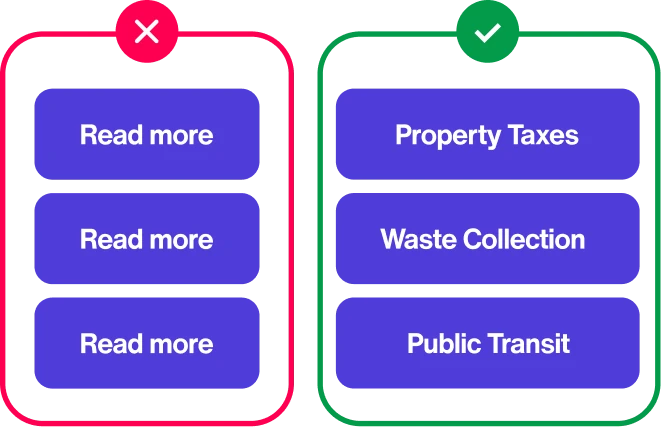
Link Purpose (In Context) · Level A ~43% of government sites
Link text should stand on its own: “Apply for a permit” explains what it does while “click here” does not. More than 4 in 10 government sites still lean on “read more” and “learn more,” which tell screen-reader users nothing, especially when they pull up a list of every link on the page. A screen full of identical “read more”s is a dead end.
07. Form controls don’t contrast with their surroundings
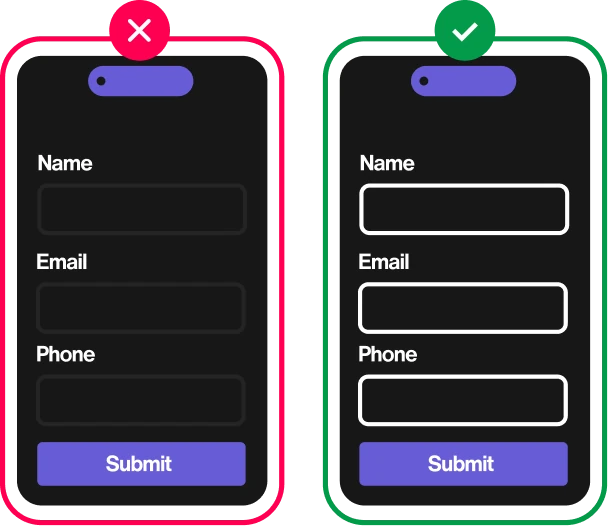
Non-text Contrast · Level AA~43% of government sites
Non-text contrast covers the visible edges of inputs, checkboxes, and buttons—they need to stand out from the background too. On more than 4 in 10 government sites they’re so faint you can’t see where a field begins, so low-vision users miss them and forms go unfinished. It’s the text-contrast problem’s quieter cousin, and it matters most on exactly the forms that deliver services: permits, benefits, registrations.
08. No visible focus indicator on control
Focus Visible · Level AA~40% of government sites
Tab through a page instead of using a mouse, and a focus indicator (an outline or highlight) should show which link or button you’re on. On 4 in 10 government sites it’s missing or invisible. Keyboard users are left guessing where they are and what they’re about to activate.

09. Headings with no text
Info and Relationships · Level A~37% of government sites
Screen-reader users navigate a page by jumping between its headings. An empty heading (a heading tag wrapped around an icon, an image, or nothing at all) shows up in that list as a blank rung on the ladder. Around a third of government sites have them, sending users to a heading that announces nothing and explains less.

10. Field purpose not identified for autofill
Identify Input Purpose · Level AA ~36% of government sites
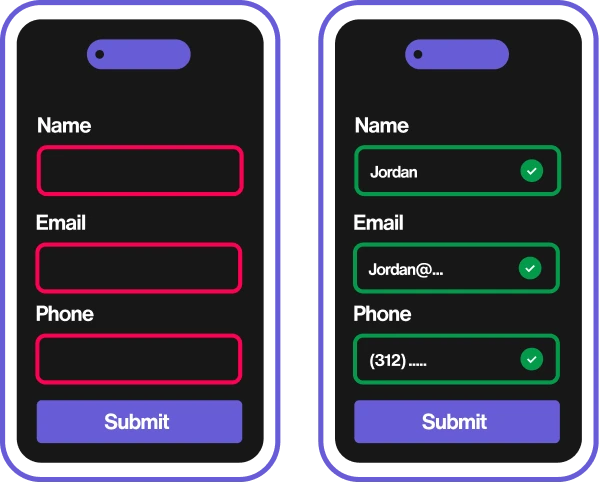
This rule asks sites to label common fields like name, email, address in code so browsers can autofill them. It’s not just inaccessible—on the application and inquiry forms that are the service, that friction quietly costs you completed submissions too.
11. Page won’t reflow on small screens
Reflow · Level AA~34% of government sites
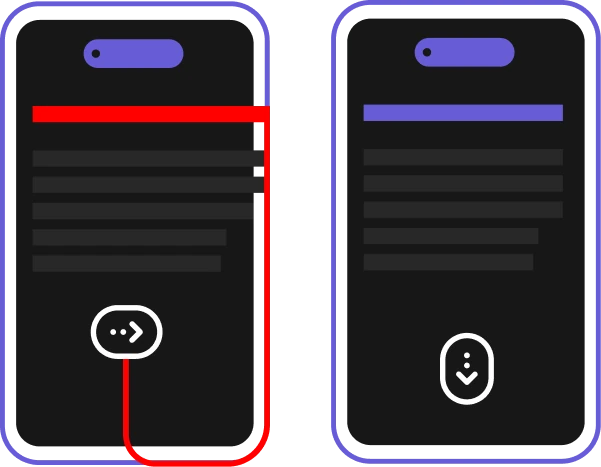
Reflow means content stacks into a single readable column when you zoom in or shrink the screen. A third of government sites don’t, trapping anyone who magnifies past 400% or browses on a smaller phone in awkward two-way scrolling. Given how many people reach government services on a phone, that’s a lot of trapped readers.
12. Page missing a top-level heading
Info and Relationships · Level A~33% of government sites
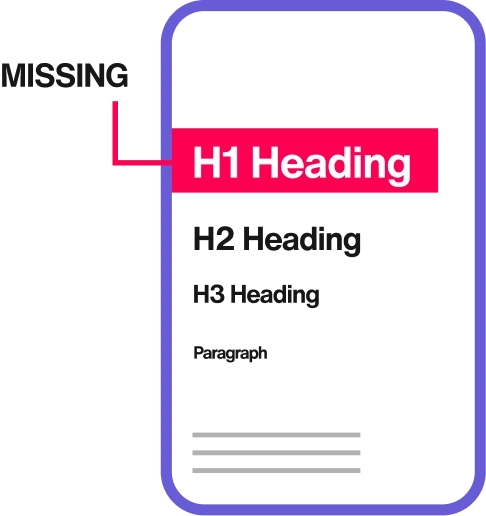
Every page should open with a top-level heading (an H1) stating what it’s about — the anchor screen-reader users navigate from. Around 1 in 3 government pages have none, confiscating that map entirely. Bonus sting: it also dents your search ranking and scannability for everyone else.
13. Page language not specified
Language of Page · Level A~32% of government sites
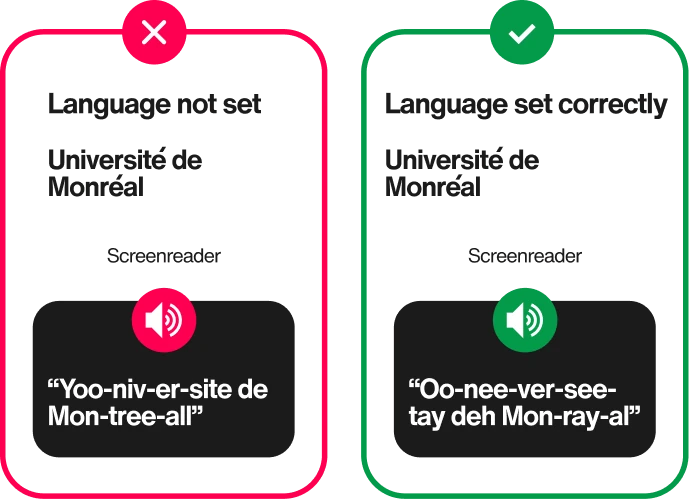
A single line of code tells assistive tech what language a page is in, so a screen reader pronounces it correctly. Without it, English gets read with the wrong rules, and pages translated for non-English-speaking residents are mis-voiced entirely. For governments serving multilingual communities, this one punches above its weight, and it’s quietly becoming more common, not less.
14. Data tables missing header cells
Info and Relationships · Level A ~30% of government sites
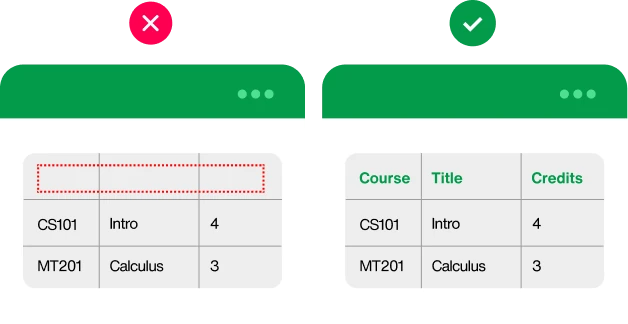
Government websites run on tables: budgets, schedules, fee lists, election results. A proper table marks its header cells so a screen reader can say “row: Permit type, column: Fee” as the user moves through it. On about 3 in 10 sites the headers aren’t marked, so the table becomes a flat stream of numbers with no idea which is which.
15. Links signalled by color alone
Use of Color · Level A~29% of government sites
If the only thing distinguishing a link from surrounding text is its color, anyone who can’t perceive that color—like color-blind users, or anyone on a washed-out screen—can’t tell it’s a link at all. Nearly 3 in 10 government sites rely on color alone. The fix is usually one line of CSS: bring back the underline.