

When you work in design long enough, there’s always that moment – the one where a project looks beautiful, you’re feeling smug, and someone casually says:
“Can we make the PDF accessible?”
Cue the existential dread! I thought it would be easy. Add some alt text, tick a few boxes, job done. Spoiler: it wasn’t.
(Months and 136 checks later, the “gold standard” still isn’t there either.)
What followed was a crash course in logic, structure, and patience, basically everything design school didn’t teach me. But here’s the thing: once I got it, it started to make sense.
Not because accessibility is bad, but because doing it properly was completely new to me.
This is my story of learning to build accessible PDFs, from InDesign to Acrobat and how I learned that accessibility isn’t a headache, it’s good design.
Step 1: Tagging (the secret life of paragraph styles)
Before I started, I thought “tagging” was just a fancy word for labelling things. It turns out to be the backbone of an accessible PDF.
Tags are what assistive technology uses to understand the structure of your document, which parts are headings, which are paragraphs, and which are lists or tables. Without tags, your beautifully designed layout will be useless to anyone using assistive tech: no hierarchy, no order, no sense.
So, tagging isn’t just something you do at the end. It starts right at the style level.
If you’re using Paragraph Styles in InDesign (and you absolutely should), each style can be linked to a PDF tag. That means your headings, body text, captions, and lists will carry their correct structure automatically when you export, saving you hours of manual clean-up later.
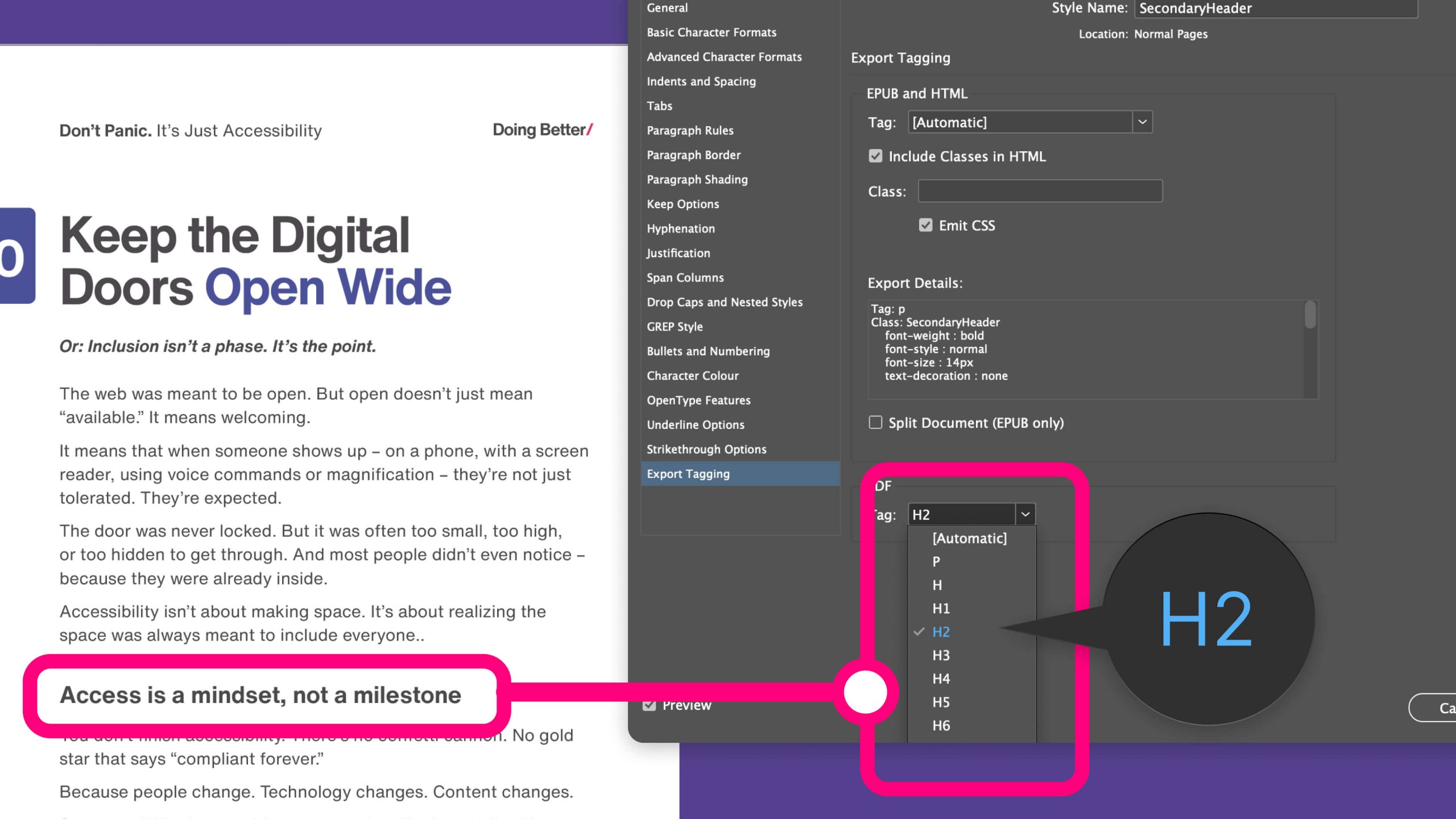
Setting it up takes two minutes, but saves you hours later. Here’s how:
- Open the Paragraph Styles panel.
- Right-click your style (for example, “Heading 1”) and choose Edit [Style Name].
- Go to the Export Tagging section.
- Under PDF Tag, select the correct tag from the dropdown:
- H1 for your main headings
- H2 for subheadings
- P for body text
- LI for list items
- Caption for image descriptions
Repeat for each style you use.
Now every time you apply that style, InDesign knows exactly how to tag it when you export.
Bonus step: bookmarks, because nobody likes scrolling forever
If your document has proper headings, you can turn them into bookmarks automatically. These act like a table of contents for your PDF, making navigation a breeze for screen reader users (and honestly, for everyone else too).
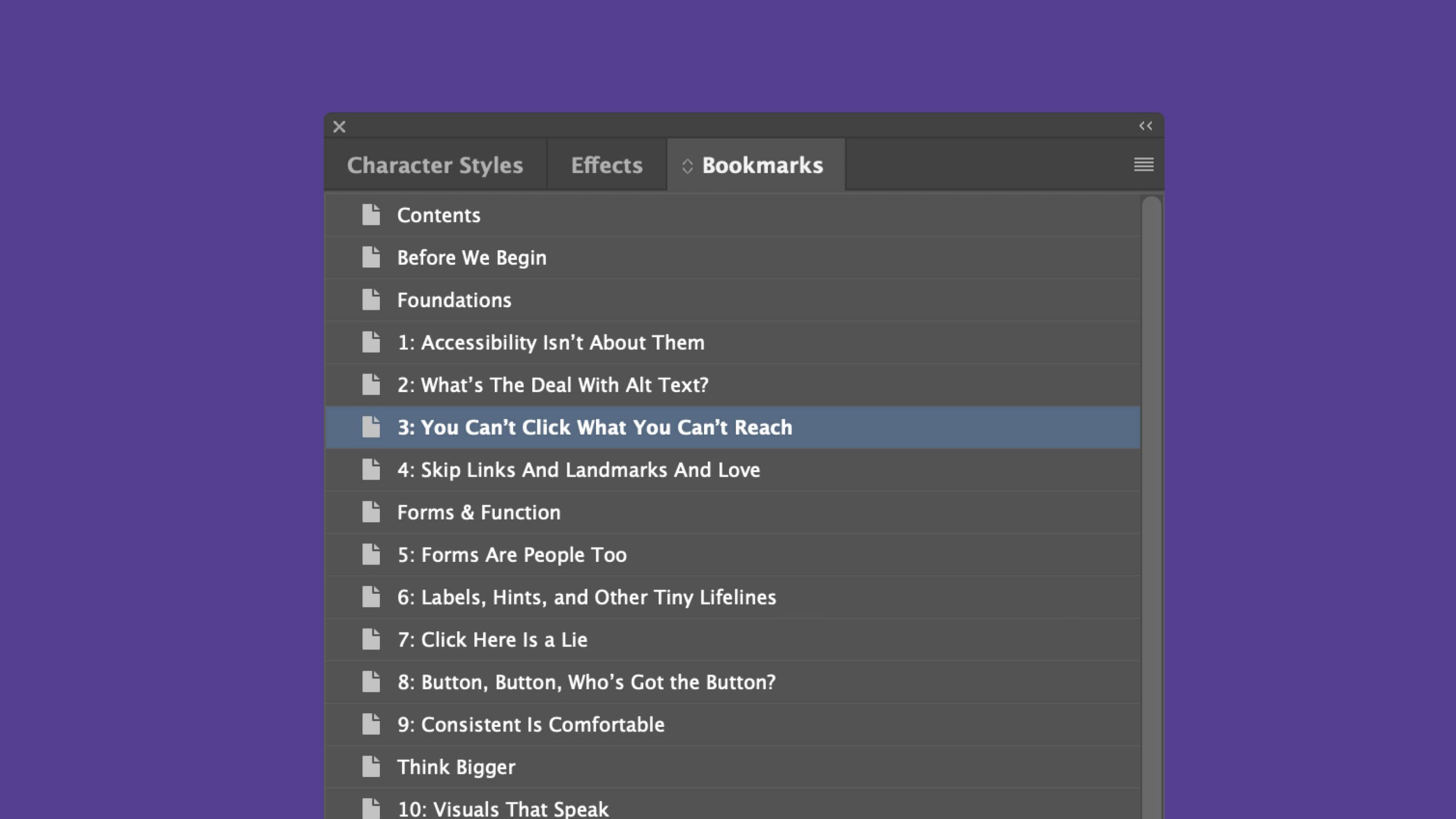
Here’s how to set it up:
- In InDesign, open the Bookmarks panel (Window → Interactive → Bookmarks).
- Highlight each heading in your layout and click New Bookmark.
– Or, even better, generate them from your Table of Contents settings so they match your structure automatically. - When you export, make sure Create Bookmarks is checked in your PDF (Export) options.
Once in Acrobat, check View → Show/Hide → Navigation Panes → Bookmarks to see if they came through.
They might feel like a small touch, but bookmarks are one of those little details that make a PDF feel genuinely thought-through and usable.
Step 2: Discovering the Articles panel
I’d worked in InDesign for years before I noticed the Articles panel hiding under Window → Articles. This tiny feature is the unsung hero of accessibility.
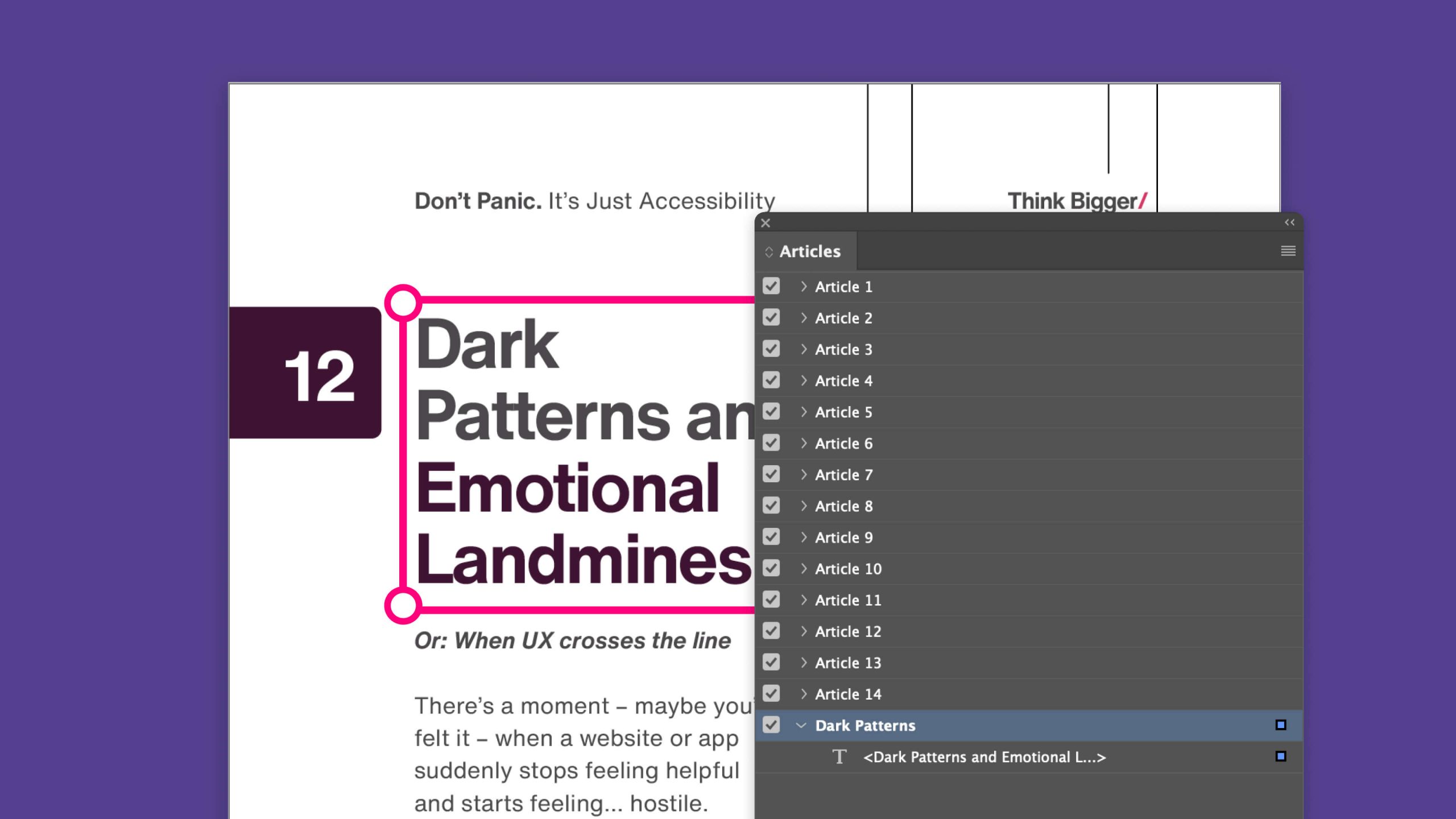
The Articles panel is where your layout turns into something a screen reader can actually understand. It controls the reading order of your document, the sequence that assistive technologies follow when someone navigates your PDF.
Think of it as the invisible script behind your design, it controls how your document will be read aloud.
You don’t have to drag every element in one by one (unless you enjoy suffering). Instead, select all your text boxes, images, captions, or tables at once – hold Shift or Cmd/Ctrl to grab multiple, then click “New Article” → “Add Selection.”
Everything you picked gets added in the order you selected it, neatly grouped and ready to read. It’s faster, tidier, and far less swear-inducing.
Without this step, your PDF might look perfect, but make zero sense to someone using a screen reader, as text might jump from a footer to a heading to an image at random.
The first time I used it, it felt like trying to explain my layout to a robot. But once it clicked, I realised it’s not scary, it’s just logic. And logic, it turns out, can be pretty satisfying.
Now that everything is in the right reading order, there’s another layer of meaning to add, one that helps describe what each element actually is.
Top tip:
Add to your Articles panel as you go, not at the end. Trust me, trying to rebuild your entire reading order after export is the design equivalent of untangling Christmas lights.
Alt text – function over description
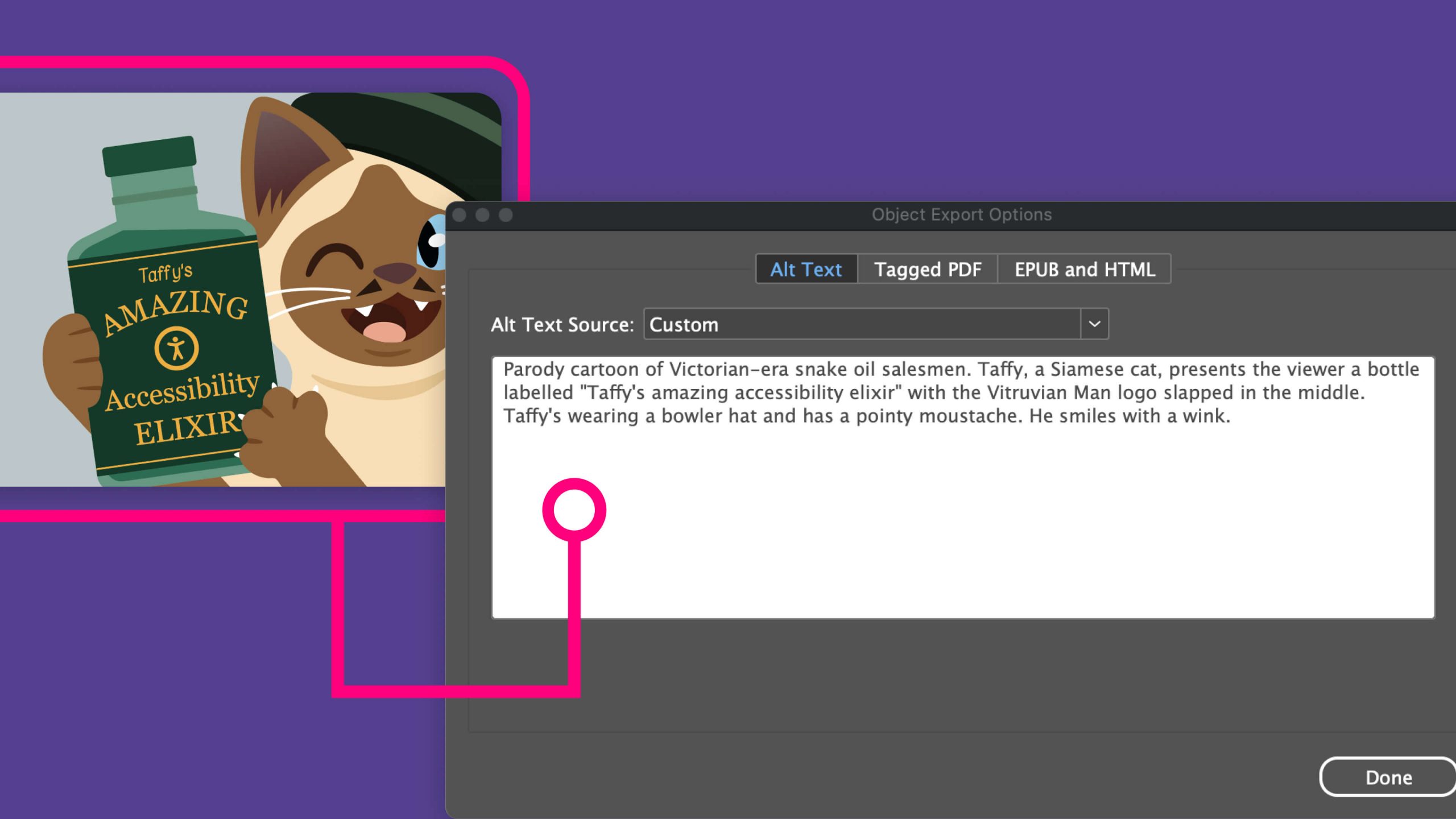
Next comes alt text: short, clear descriptions that explain what’s in your images.
But here’s the thing nobody tells you: alt text isn’t about describing what something looks like. It’s about describing what it does, what it means, or where it goes.
The question isn’t “what is this?” It’s “what would someone miss if this image didn’t load?”
For a quick, helpful explainer on the basics, watch Silktide’s short video on writing great alt text. But let me save you from the most common mistakes I see everywhere:
The golden rule: describe function and context, not objects
If it’s a link, describe where it goes – not what it looks like.
You know those stock photos of “woman looking confused at laptop”? If that image is clickable, nobody cares about the woman or the laptop. They need to know where the link takes them.
- Bad: “Woman looking confused at laptop”
- Good: “Contact technical support” or “Troubleshooting guide”
The image is just wrapping paper around a function. Describe the function.
If it’s data, put the data in the text – not buried in alt text.
Charts and infographics should support what’s already in your text, not replace it. If the key insight is “Revenue grew 300% in Q4,” that should be a sentence in your document, not hidden in alt text.
- If the text already explains the data: Alt text can be minimal (“Revenue growth chart, Q1-Q4 2024”) or even marked as artefact if it’s purely visual reinforcement
- If the chart is the ONLY place that data appears: You’ve got a problem. Put the critical information in the text, then use alt text to describe the visual representation if needed
Alt text isn’t a secret hiding place for information. If the data matters, it belongs in the actual content where everyone can access it, not just screen reader users.
If it’s decorative, mark it as an artefact – don’t write “decorative.”
Do yourself a favour and mark decorative images as artefacts in InDesign. (Object Export Options → Alt Text → Source → Custom → check ‘Artefact’.) Screen readers will politely skip them.
Resist the urge to type alt=”decorative.” Screen readers will literally say “decorative,” and no one needs that. Background shapes, dividers, flourishes – just mark them as artefacts and carry on.
Context is everything.
Think about what the image is doing in your document:
- Logo in the header with company name in text next to it: Mark logo as artefact (redundant)
- Logo in the header, no text anywhere: Alt text = [company name] and a brief description of the logo if it isn’t a wordmark
- Logo that’s also a link to homepage: Alt text = “Home” or “[Company name] home” (describes the function)
- Product photo in a gallery where all the features are listed in the text below? Alt text: Product name only, or artefact if it’s redundant.
- Headshot where the person’s name and title are in the caption? Consider marking it as an artefact, or describe what matters visually if appearance is relevant to the content.
The hand-over-the-image test
Put your hand over the image. If you’re not missing vital information or function, it probably doesn’t need alt text – or it needs very minimal alt text.
If it’s doing something important (conveying data, providing navigation, showing context that isn’t in the text), then describe that thing.
Adding alt text in InDesign (without the suffering)
Adding alt text in InDesign is painfully repetitive. You can’t just double-click and type it in – you have to right-click the image, select Object Export Options, go to the Alt Text tab, then type it in manually. Every. Single. Time.
After my fiftieth “Object Export Options” click, I was ready to throw my mouse out the window.
Top tip: Keyboard shortcuts, your new best friend
I discovered a sanity-saver to adding alt text: custom keyboard shortcuts.
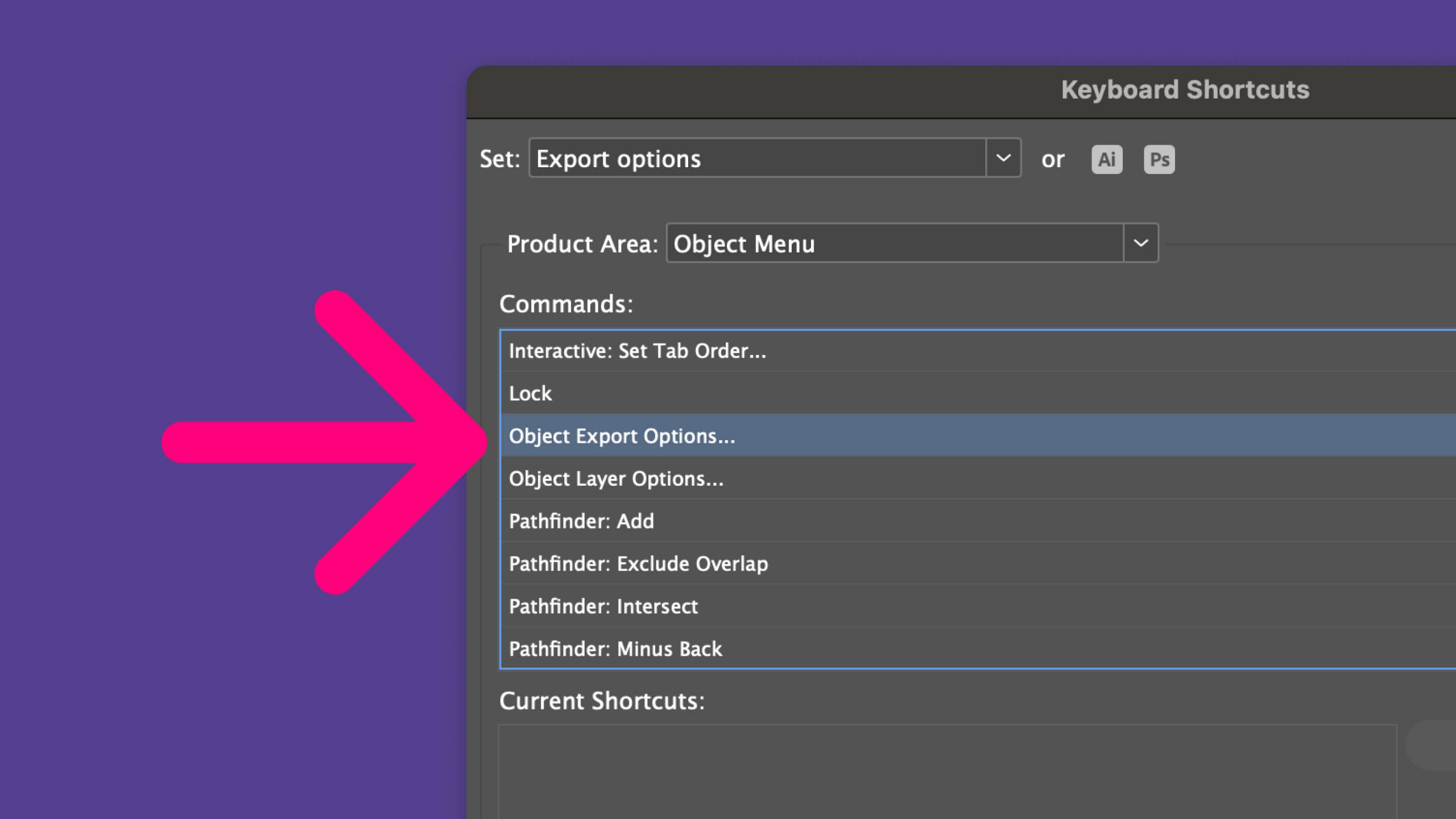
How to set them up:
- Go to Edit → Keyboard Shortcuts.
- Under Product Area, select Panel Menus.
- Scroll until you find Object → Object Export Options.
- Assign your own shortcut (for example, Ctrl + Alt + E or Cmd + Option + E on Mac).
Now, instead of endless right-clicking, one quick shortcut opens the dialog. It’s still a grind, but a faster grind.
Pro tip:
batch your alt text sessions. Add all images first, then tag them with your shortcut. Your wrists (and patience) will thank you.
Step 4: Exporting from InDesign, the moment of truth
You’ve tagged everything, written your alt text, and the Articles panel looks like a work of art. Now comes the scariest click in any designer’s life:
File → Export → Adobe PDF (Interactive or Print)
This is where things can quietly go wrong. The wrong export setting can strip out your tags or flatten your structure, and suddenly your “accessible” PDF is just… a pretty picture.
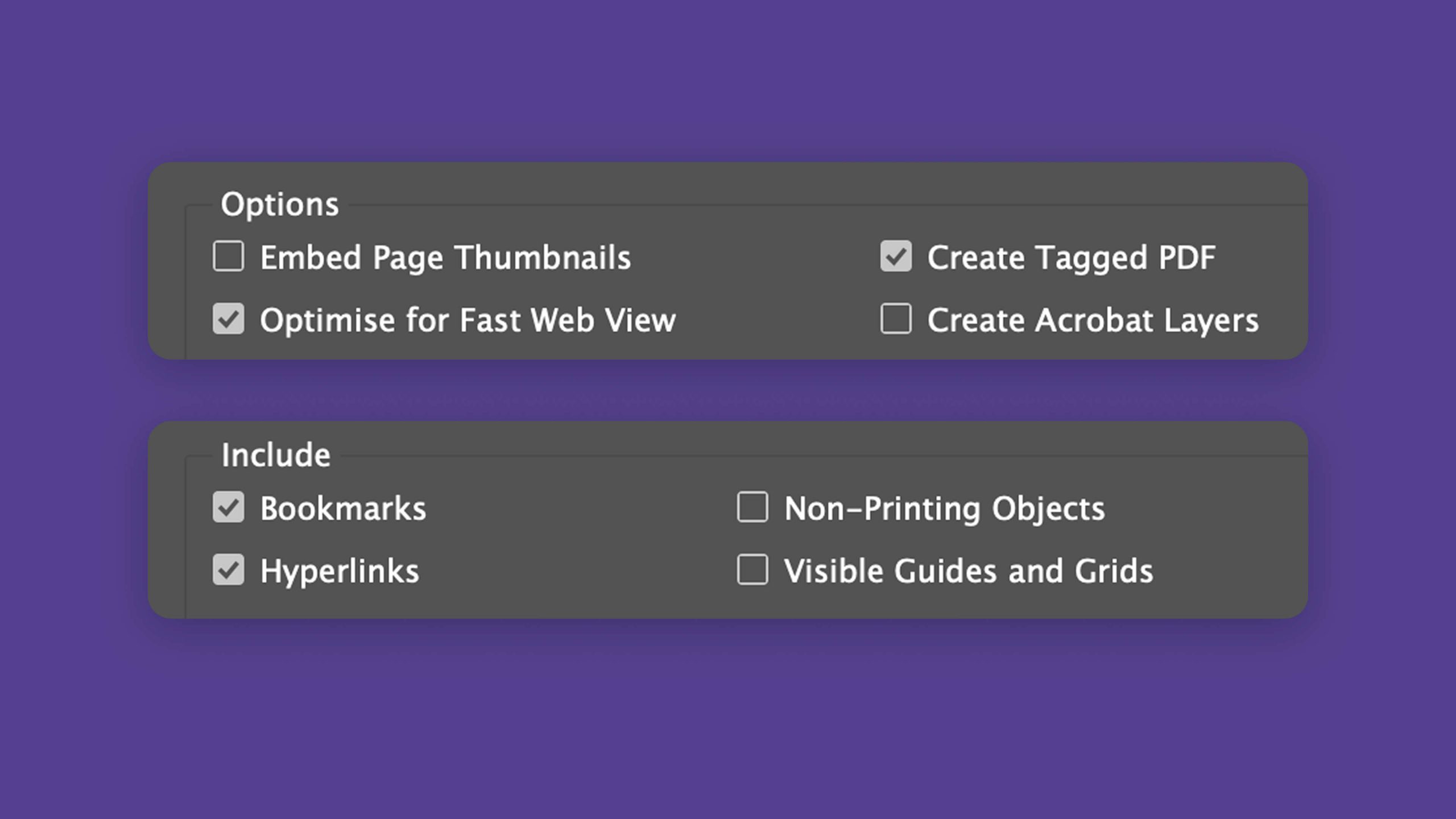
Check these before export:
- Choose the right format:
Go for Adobe PDF (Print) it gives more control and supports proper tagging. The “Interactive” option is fine for buttons and links, but it can behave unpredictably. - In the Export dialog:
- Under General, check Create Tagged PDF and Bookmarks
- Under Advanced, make sure Subset fonts when percent of characters used is less than: 100%
- Under Compression, avoid downsampling text-heavy pages too aggressively
- Under General, check Create Tagged PDF and Bookmarks
- Reading order:
Your PDF’s logical reading order follows the Articles panel, not the Layers panel. - Metadata:
Head to File → File Info and fill in title, author, description. Screen readers will thank you.
Hit Export, cross your fingers, and give your computer a silent pep talk. If done correctly, you’ll see a tagged, structured file ready for Acrobat.
Step 5: Acrobat Pro – the final boss
If InDesign was the warm-up level, Acrobat Pro is the boss fight.

You open your freshly exported PDF, run the Accessibility Checker, and immediately get messages like:
“Tagged PDF – Failed.”
“Alternative text – Missing.”
“Logical Reading Order – Suspicious.”
Suspicious? Really, Adobe?
Here’s the thing: InDesign gets you most of the way there. It builds the structure, tags, order, and alt text. But when that structure gets exported to PDF, not everything survives the trip perfectly. Some tags break, alt text doesn’t embed properly, or Acrobat just doesn’t trust what InDesign says.
That’s why Acrobat exists in the process, it’s your final quality check and repair toolkit.
In Acrobat, you can:
- Run the Accessibility Checker to see what passed, failed, or looks “suspicious.”
- Open the Tags panel to view the skeleton of your document. Each tag represents what a screen reader will announce – headings, paragraphs, tables, images, and so on. You can rearrange or rename them directly.
- Use the Reading Order tool (Tools → Accessibility → Reading Order) to visually adjust how content is read. This lets you draw boxes around sections and assign them as text, heading, figure, or artifact – essentially teaching Acrobat how to “read” your design.
- Add missing alt text or mark decorative images as artifacts right inside the Tags panel – no need to go back to InDesign unless it’s a layout issue.
- Run the Full Check again after each fix, and watch that list of red Xs shrink like a boss’s health bar.
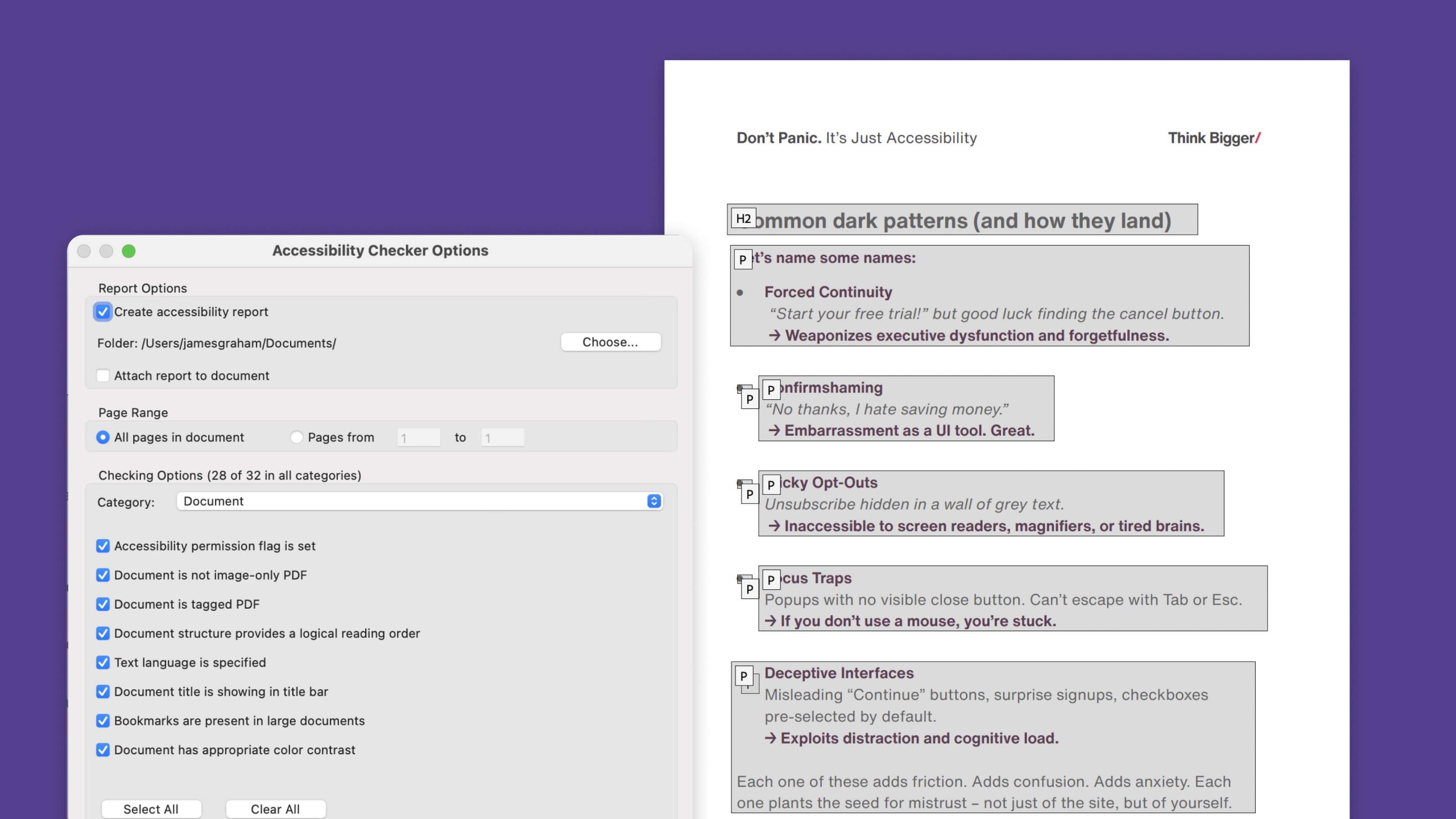
It’s fiddly, yes. But once you understand what Acrobat is checking for, it starts to feel less like punishment and more like quality control.
When you finally get that glorious “Passed” message, it’s more than just validation – it’s proof you’ve turned a static design into something everyone can use.
That’s your accessibility badge of honor.
Step 6: Survival tips for fellow designers
If you’re starting your own accessible PDF adventure, here’s what I wish someone had told me:
- Start with structure. Set up your paragraph styles and tags early – it saves endless fixes later.
- Use the Articles panel from the beginning. It keeps your document’s reading order organised.
- Ensure your alt text is good. Be concise and factual – imagine describing it over the phone.
- Check early, check often. Export and test in Acrobat as you go.
- Learn your tags. <H1>,<H2>,<H3> = headings, <P> = paragraph. Think of it as HTML with Adobe’s sense of humor.
- Be patient. Accessibility takes practice, but it’s worth it.
Step 7: What can go wrong and how to fix it
Even when you’ve done everything “right,” PDFs have a way of testing your patience.
1. Tags that vanish on export
You swear you tagged everything in InDesign, but the PDF looks like it’s been through a shredder.
- Why it happens: Some InDesign elements don’t translate cleanly to PDF – grouped objects, anchored frames, or decorative items marked incorrectly.
- Fix it: In Acrobat, open the Tags panel and rebuild missing sections manually. You can drag content from the Order panel into the right place, or recreate tags using the Reading Order tool.
2. Alt text gone AWOL
You carefully added alt text in InDesign, but Acrobat claims “Alternative text – Missing.”
- Why it happens: The alt text doesn’t always embed correctly during export.
- Fix it: Double-check in Acrobat’s Tags panel. Right-click an image tag → Properties → add or edit the alt text there.
3. Reading order chaos
Your PDF reads like a puzzle someone gave up on halfway through.
- Why it happens: Complex layouts (like multi-column text or overlapping objects) confuse Acrobat’s reading logic.
- Fix it: Open the Reading Order tool. Use the numbered boxes to define how content should flow, starting with 1 at the top and working down. If it looks wrong visually, it will sound wrong audibly.
4. The “Suspicious” reading order warning
Acrobat’s favourite passive-aggressive comment.
- Why it happens: Acrobat isn’t sure your structure is logical.
- Fix it: Don’t panic – it’s just a prompt to double-check. Use the Tags and Order panels to make sure headings flow naturally and reading order matches the visual layout.
5. Failed Accessibility Checker even after all that work
You’ve fixed everything, rerun the check, and it still says “Failed.”
- The checker’s a bit twitchy it can miss real issues or flag problems that aren’t actually there. Think of it as helpful, but not infallible.
- Fix it: Review each issue manually. Some checks need human judgment – for example, confirming alt text accuracy or reading order logic. The checker is a tool, not a verdict.
The moral of the story
Making accessible PDFs isn’t glamorous, but it makes your work usable for more people.
After surviving your first full project, you’ll never look at reading order the same way again.
So if you’re about to start your own journey, don’t panic. You’ve got this. And if you ever feel like you’re lost and worried in the Articles panel, remember: we’ve all been there.
Don’t fear the PDF. Learn it, tame it, and you might just love it.