Testing for accessibility doesn’t mean running a full audit or writing a single line of code. And it’s not just for developers.
If you create content, design pages, upload images, or review work before it goes live – this is for you.
You don’t have to be an expert to spot accessibility issues. You don’t need a cape or a dev toolkit. Sometimes it just takes curiosity, a browser extension, and a few minutes.
Because you can’t fix what you’re not looking for.
The Tab Key Test: Your New Superpower
Here’s a simple test you can do right now. It’s quick, it’s powerful, and it tells you more than you might think.
- Pick a page on your site
- Close your eyes
- Press Tab a few times
- Now open your eyes
Can you tell where you are? Can you see what’s selected? Can you do anything with it?
What you’re checking for
Focus visibility: That tiny visual highlight that tells you where you are on the page. If you can’t see it, keyboard users are lost.
Logical order: Does the focus move in a way that makes sense? Top to bottom, left to right? Or does it jump around like a pinball?
Reachability: Can you get to everything interactive? If something responds to a click but not to Tab + Enter, it’s broken for keyboard users.
No traps: Can you get out of everywhere you can get into? Modals, menus, and forms shouldn’t become digital prisons.
Why this matters
More people use keyboard navigation than you think:
- Blind or low-vision users with screen readers
- People with motor impairments or tremors
- People avoiding pain from repetitive strain
- People with temporary injuries (hello, broken wrist)
- Parents holding a baby in one hand
- Developers testing layouts
- You. Right now. Because I told you to.
Keyboard navigation isn’t niche. It’s everybody.
What good focus looks like
Thick outlines. High contrast. Clear shapes.
Focus is your compass. Your orientation tool. Your reassurance that you haven’t lost control. And when that compass disappears? You’re adrift.
If you need a starting point, try the “Oreo cookie” focus style – thick, clear, high-contrast. It works everywhere:
:focus-visible {

  outline: 3px solid #000;

  outline-offset: 2px;

}
The 400% Zoom Test: When Layouts Break
- Open your site
- Press Ctrl/Cmd + Plus until you reach 400% zoom
- Try to complete a basic task
Can you:
- Read everything without side-scrolling?
- Navigate logically through the content?
- Complete forms without losing track of fields and labels?
- Access all interactive elements?
Why 400%?
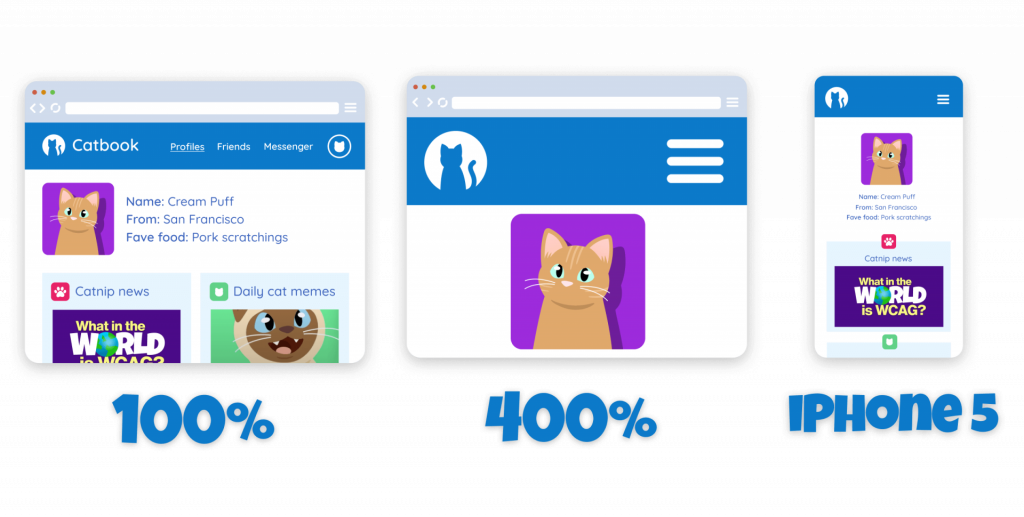
That figure isn’t random. WCAG picked it because some users need to enlarge text just to read it comfortably. The dimensions they based it on? Roughly the size of an iPhone 5. That’s why mobile-friendly design and accessibility are so deeply linked.
What goes wrong
Horizontal scrolling: If you’ve never tried to fill out a form that scrolls sideways, you’ve been spared. It breaks the reading rhythm, slows you down, and creates frustration fast.
Overlapping content: Text that disappears under sticky headers, behind cookie banners, or off the edge of the screen entirely.
Broken relationships: When spacing is inconsistent, users might not know which labels go with which form fields, or which toggles control what.
Design for the keyhole
Screen magnification isn’t just a bigger screen. It’s a smaller window. Magnifier users often see only a portion of the screen at a time – a bit like looking at a website through a cardboard tube.
Design like someone’s seeing one corner of the screen at a time – because they are.
That means:
- Clear headings help users orient themselves
- Logical reading order means less panning around
- Predictable spacing means less chance of missing something critical
- One-column layouts flow better than complex multi-column designs
Contrast Testing: More Than Just Numbers
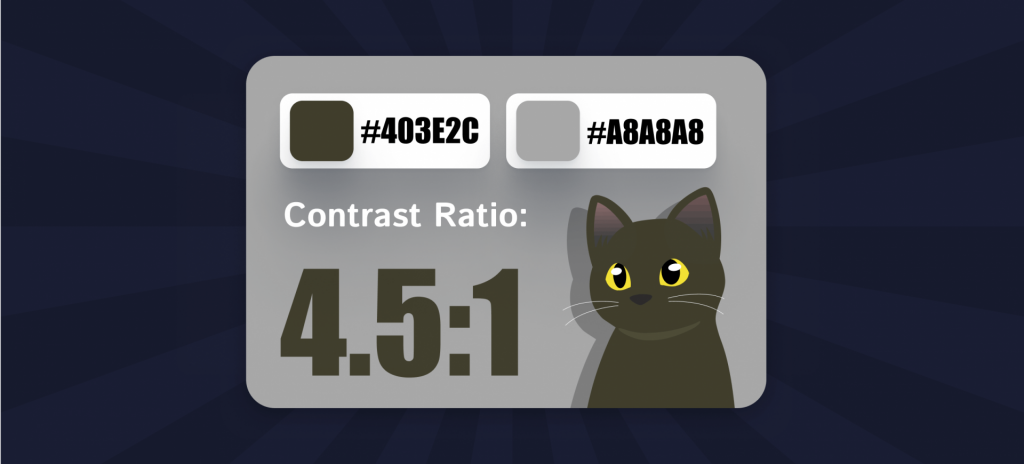
Yes, you need proper contrast ratios (4.5:1 for text, 3:1 for interactive elements). But the real test isn’t just about numbers.
The squint test
Blur your vision or step back from your screen. Can you still tell what’s interactive? Where the important information is?
Real-world conditions
How does your site look:
- On a phone in bright sunlight?
- With a blue light filter on?
- On an older monitor?
- When you’re tired or stressed?
Beyond text contrast
Don’t forget interactive elements:
- Button borders and backgrounds
- Focus states and hover effects
- Form field borders
- Icon contrast against backgrounds
- Chart and graph elements
If someone has to highlight text to read it, your contrast isn’t design – it’s camouflage.
The Silktide Browser Extension: Your Testing Toolkit
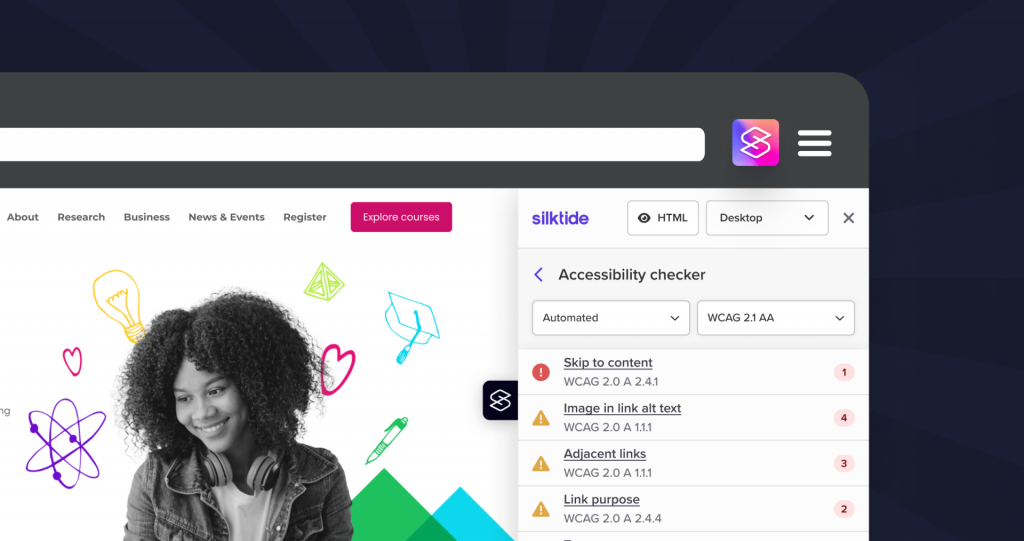
The easiest way to start? Use the free Silktide browser extension. Just install it in Chrome, click the toolbar, and it instantly shows you:
Visual overlays
- Alt text overlaid right on images
- Tab order shown with arrows so you can follow the focus
- Landmarks to check your page structure
- Headings including skipped or misused heading levels
Simulators
- Vision simulators to see how your page looks with color blindness or low vision
- Screen reader simulator so you can hear what assistive tech would read aloud
Automated checks
Runs accessibility checks on the page with plain-language explanations of what each issue means.
And it’s free! No login. No commitment. Just instant insight.
Make it part of your workflow
Whenever you’re reviewing a page, just run the extension:
- Is there alt text?
- Can you follow the tab order?
- Do the headings feel logical?
- Can you spot anything confusing or hard to reach?
Even if you’re not the one fixing it, flagging it early helps your whole team.
Other Quick Tests You Can Do Right Now
The tired brain test
Look at your site when you’re exhausted. At the end of a long day. Can you still figure out what to do? If you can’t navigate your own site when you’re tired, how can you expect others to?
The one-hand test
Try using your site with just one hand. Hold your phone normally, then try again while holding coffee, a bag, or pretending you’re on a crowded train. Are your touch targets big enough? Is everything still reachable?
The plain language test
Read your content out loud. Do the link texts make sense on their own? Do your button labels clearly say what they do? Could someone scanning just the headings understand the page structure?
The error message test
Deliberately make mistakes in your forms. Do the error messages tell you what went wrong and how to fix it? Are they placed where you can actually see them?
Building Testing Into Your Process
Don’t wait until the end
Real accessibility testing is layered. Each method brings something different – and none of them cover everything.
- Automated testing is broad but shallow. Fast and scalable, but only catches what it’s programmed to find.
- Manual testing is deep but narrow. Uncovers what automation misses, but takes time.
- User testing with people who have disabilities is the gold standard – but it comes after you’ve fixed the obvious stuff.
Quick checklist: Last chance to fix it
Let’s say you’re about to ship a page. Here’s your last-chance, no-guilt accessibility review:
- Can you move through the page with just a keyboard?
- Can you tell where the focus is at all times?
- Does every image have alt text – or a reason not to?
- Are your headings in order and easy to skim?
- Do your links make sense out of context?
- Can you zoom to 400% and still use the site?
- Is your language clear and easy to understand?
- Did you check with the browser extension?
That’s it. That’s the final boss. And you don’t have to beat it alone.
Common Testing Traps
Assuming automation is enough
Automated tools are great for catching the obvious stuff – missing alt text, poor contrast, broken HTML. But they can’t tell you if your alt text is actually helpful, if your site makes sense, or if the user experience flows well.
Forgetting about mobile
Your desktop site might pass every test, but how does it work on a phone? With different screen sizes, touch targets, and input methods?
Testing only the happy path
Don’t just test when everything goes right. What happens when:
- Someone makes an error in a form?
- Content is longer than expected?
- Images fail to load?
- JavaScript doesn’t work?
Not testing dynamic content
Static pages are just the beginning. Test your:
- Modal dialogs and popups
- Dropdown menus and accordions
- Form validation and error states
- Loading states and progress indicators