Vision isn’t binary. It’s not just “can see” or “can’t see” – it’s a spectrum of how people perceive, process, and interact with visual information.
Some people zoom in to 400%. Others see colors differently. Some process information more slowly. And millions of people are trying to use your website on a phone screen while holding coffee and waiting for a bus.
Sometimes it’s permanent – like low vision or color blindness. Sometimes it’s situational – like trying to read in bright sunlight. Sometimes it’s temporary – like blurry vision after a long day or a migraine.
When you design for these different ways of seeing, you’re not just checking accessibility boxes. You’re creating experiences that actually work in the real world.
Visual Clarity: More Than Just Making Things Bigger
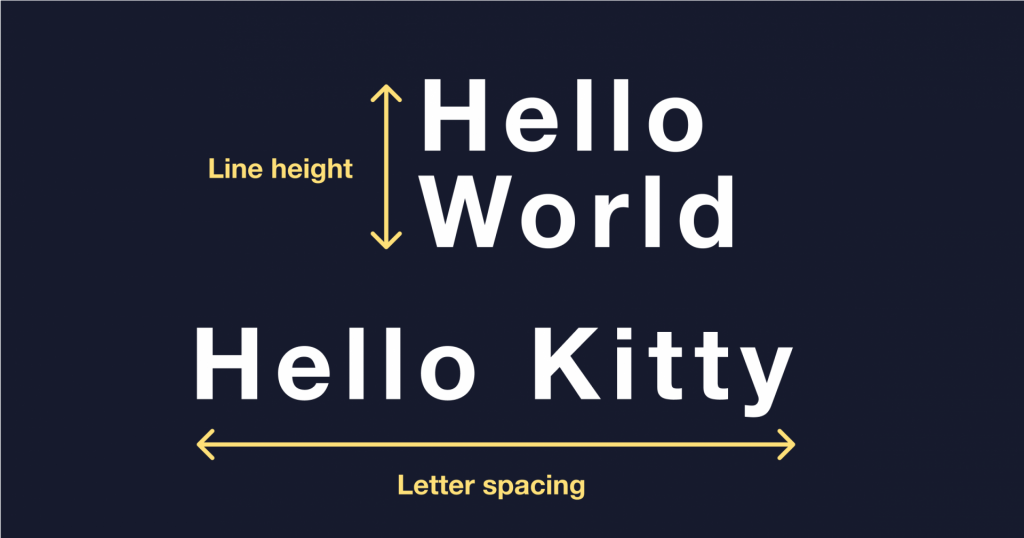
Text needs to be readable
If it’s hard to read, people will either strain – or give up.
Text needs to be large enough, spaced well, and clearly legible. That includes form labels, error messages, footnotes, and anything interactive.
But don’t just test it on your bright office monitor.
- How does your site look on a phone in bright sunlight?
- What happens with a blue light filter on?
- Can you still navigate when you’re tired or stressed?
The numbers behind the clarity
WCAG specifies minimum contrast ratios for a reason. These aren’t arbitrary design constraints – they’re based on research about what people can actually perceive.
4.5:1 for body text – This is the baseline ratio between text and its background for normal-sized text. It ensures that most people with moderately low vision can read your content without assistive technology.
3:1 for large text and UI elements – Large text (18pt or 14pt bold and above) and interactive elements like button borders, form fields, and icons need at least 3:1 contrast. They’re bigger or more prominent, so slightly lower contrast still works.
These are minimums, not targets. More contrast is always better. If you can hit 7:1 or higher without sacrificing your design, do it.
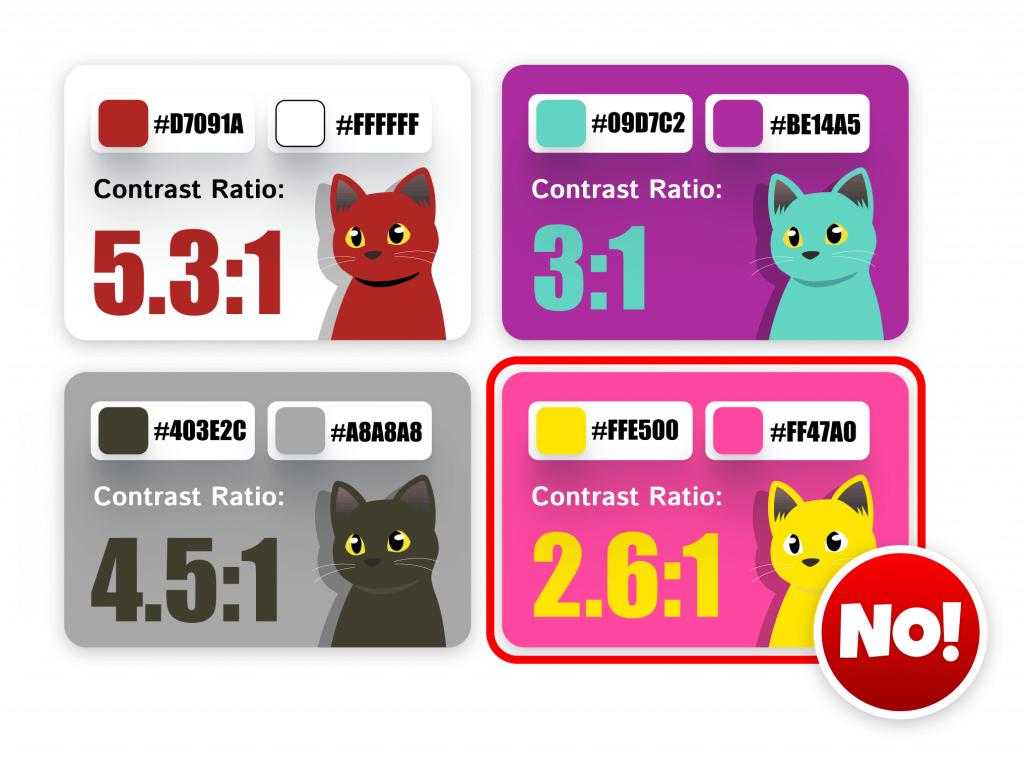
The difference between 4.5:1 and 2.6:1 might not sound like much. But one is readable for most people, and the other leaves millions of users squinting, guessing, or giving up entirely.
Yes, you need proper contrast ratios (4.5:1 for text, 3:1 for interactive elements). But the real test isn’t just about numbers – it’s about whether people can actually use your site in real conditions.
Text over images
Text directly on photos or complex backgrounds is a gamble. Parts might be readable, parts might disappear entirely; it all depends on what’s behind each letter. The solution: a scrim. A semi-transparent overlay (usually dark) between the image and the text creates consistent contrast across the entire message. It’s not about hiding your image, it’s about making sure your text doesn’t play hide-and-seek with your background.


Without a scrim, you’re hoping your text accidentally lands on the right colors. With a scrim, you’re designing for readability on purpose.
Color can’t do all the work
We love to use color to communicate – green for success, red for errors, grey for disabled. But color alone doesn’t cut it.

Not everyone sees color the same way. Not everyone sees color at all. And even if they do, ambient lighting, grayscale displays, and dark mode can all interfere.
So don’t rely on color alone:
- Pair it with text labels
- Add icons or patterns for reinforcement
- Use consistent shapes for meaning (checkmarks, warning triangles)
That bright red border around a form field? Great – as long as it’s not the only signal that something went wrong.
Vision simulators: Try it yourself
Your browser extension or design tools can show you how your site looks with different types of color blindness or low vision. It’s not perfect, but it’s eye-opening. Literally.
When you see your red error messages disappear or your subtle grey text become invisible, you understand why color can’t do all the work.
Screen Magnification: Looking Through a Cardboard Tube
Screen magnification isn’t just a bigger screen. It’s a smaller window.
Magnifier users often see only a portion of the screen at a time – a bit like looking at a website through a cardboard tube. Maybe the top-left corner. Maybe the middle. You’re not scanning in big, sweeping gestures. You’re navigating deliberately, one chunk at a time.
That’s why design choices matter so much:
- Clear headings and consistent placement help users orient themselves
- Logical reading order means less panning around to find what’s next
- Predictable spacing and groupings mean less chance of missing something critical
Give things room to breathe
Put related items close together. Avoid hiding buttons until hover, or shifting content unexpectedly. The more predictable your layout, the easier it is to follow – even when you’re only seeing part of it at a time.
One-column layouts are often more accessible – not because they’re simpler, but because they flow. They’re flexible. Predictable. Less tiring.
Browser Zoom and Reflow
Picture this: You’re trying to read a website, so you zoom in. You scroll right a little… then down… then right again… And somewhere along the way, the content you were reading disappears – under a sticky header, behind a cookie banner, or off the edge of the screen entirely.
Now imagine doing that for every single website, every single day.
The 400% reality
That 400% figure isn’t random. WCAG picked it because some users need to enlarge text just to read it comfortably. The dimensions they based it on? Roughly the size of an iPhone 5. That’s why mobile-friendly design and accessibility are so deeply linked.
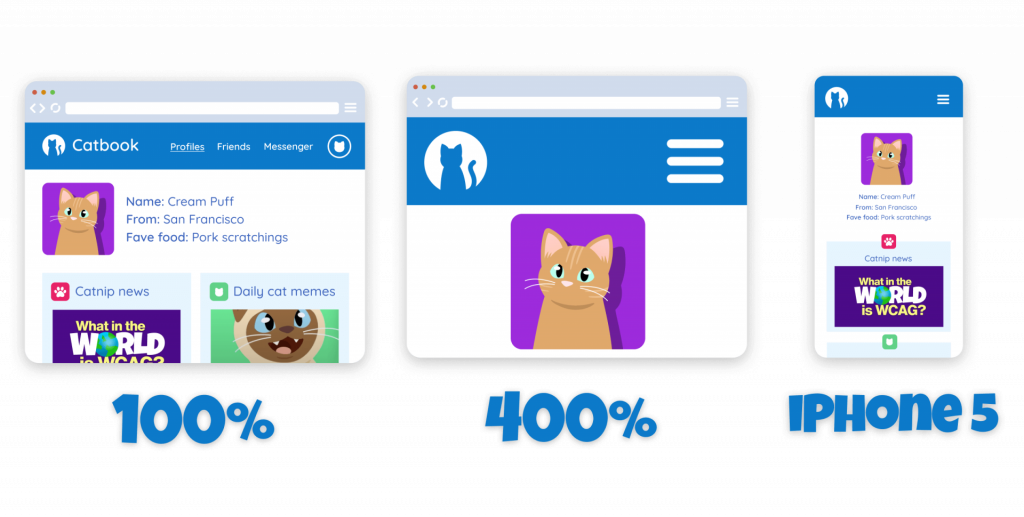
Zooming should reveal more, not remove access.
When you zoom in and things start to break – text overlaps, menus vanish, images cover up content – that’s a problem. Because for users who rely on zoom, the issue isn’t just size. It’s structure. It’s how well your layout holds up when you don’t get to see the whole thing at once.
The pain of horizontal scrolling
If you’ve never tried to fill out a form that scrolls sideways, you’ve been spared.
Horizontal scrolling breaks the reading rhythm. It slows you down, tires you out, and creates frustration fast. It’s especially painful when:
- Forms are side-by-side instead of stacked
- Layouts use fixed-width containers that don’t shrink
- Important elements (like labels or buttons) sit just off-screen
Content needs to reflow – meaning it adjusts to the smaller visible area without requiring horizontal scrolling. Test your pages at 400% zoom and make sure users can still:
- See all your content
- Navigate to buttons, menus, and links
- Understand the hierarchy and reading order
- Complete forms without losing track of fields and labels
Cognitive Load and Visual Overload
Ever open a website and suddenly… A chat box pops up. A banner slides in. A cookie notice covers half the screen. And something starts autoplaying in the corner. You’re trying to read. But the page is trying to throw a party.

Here’s the thing: Our brains are wired to notice movement – especially in our peripheral vision. It’s not your fault you got distracted. It’s biology. But websites that constantly demand our attention? They don’t help us survive. They just make it harder to think.
When design overwhelms
Designs overloaded with choices, moving elements, dense blocks of text, or too many steps can make users feel overwhelmed. When people can’t find what they need, can’t tell what’s important, or can’t follow what’s happening, they’re more likely to give up.
And for users with ADHD, anxiety, brain fog, or memory impairments, that tipping point comes even faster.
What helps: clarity and space
That’s where plain language, clear layout, and whitespace come in. It’s not just about how your website looks – it’s about how it feels to use.
- Headings break content into chunks
- Whitespace gives the brain room to breathe
- Consistent layouts help users build patterns, so they don’t have to relearn things every time
- Plain language removes friction from every interaction
Design for tired brains
You don’t have to be neurodivergent to have brain fog. You just have to be human.
So design like you expect people to be:
- Distracted
- Multitasking
- Dealing with sensory overload
- Trying to do something on their phone while holding a coffee and waiting for a bus
Break big tasks into smaller steps. Give people second chances. Auto-save progress. Let them review before submitting.
Cognitive load doesn’t show up in your analytics, but it shows up in your bounce rate.
Mobile and Small Screens
Small screens aren’t just smaller – they’re different. And when your layout doesn’t adapt, it stops being usable.
The mobile magnification connection
Here’s something interesting: The 400% zoom requirement was based on fitting a desktop layout into a 320×256 pixel frame. Which just happens to match the iPhone 5. So sites that work well at high zoom often work well on mobile (and vice versa).
But mobile adds extra challenges:
- Touch targets need to be big enough (24 pixels minimum, 44 pixels is better)
- Spacing matters more when you’re using thumbs instead of a precise cursor
- Context switching is harder when you can only see part of the interface
Input types: Stop making users fight their phones
If your form asks for a phone number, set the input to type=”tel” so users get a number pad. For emails, use type=”email”. It’s not just about switching keyboards – it tells the device what’s expected, so it can offer to fill in addresses automatically.
It’s one of the easiest ways to reduce friction, and it helps everyone.
Mobile design failures
If your mobile design:
- Crams everything into one overcrowded view
- Collapses spacing until it’s unreadable
- Forces users to scroll sideways
- Shrinks buttons to pixel-hunting size
- Makes people pinch and zoom just to function
Then congratulations: you’ve built a frustration generator and sprayed it with customer-repellent.
Don’t just squish your desktop site and call it a day. Design for small screens on purpose.
The Common Thread
Whether someone’s using a magnifier, seeing colors differently, processing information more slowly, or using a tiny screen, they all need the same fundamental things:
Clear structure that makes sense
- Logical headings and navigation
- Predictable layouts that don’t surprise
- Content that flows in a sensible order
Visual clarity that works in different conditions
- Sufficient contrast for various lighting
- Information that doesn’t rely on color alone
- Text that’s readable without decoration
Reduced cognitive load
- Simple, clear language
- Obvious interactive elements
- Forgiving interfaces that help rather than punish
Flexible layouts that adapt
- Content that reflows gracefully
- Touch targets that are easy to hit
- Forms that work on any screen size
These aren’t separate problems requiring separate solutions. They’re connected. When you make your site work well at 400% zoom, you’re probably also making it work better on mobile. When you reduce visual clutter for people with cognitive overload, you’re making it easier for everyone to focus. When you ensure color isn’t doing all the work, you’re creating clarity that survives any lighting condition.
Good design doesn’t fight against how people actually see and process information. It works with it.
And that means understanding not just what people see, but how design patterns either help or hurt them.